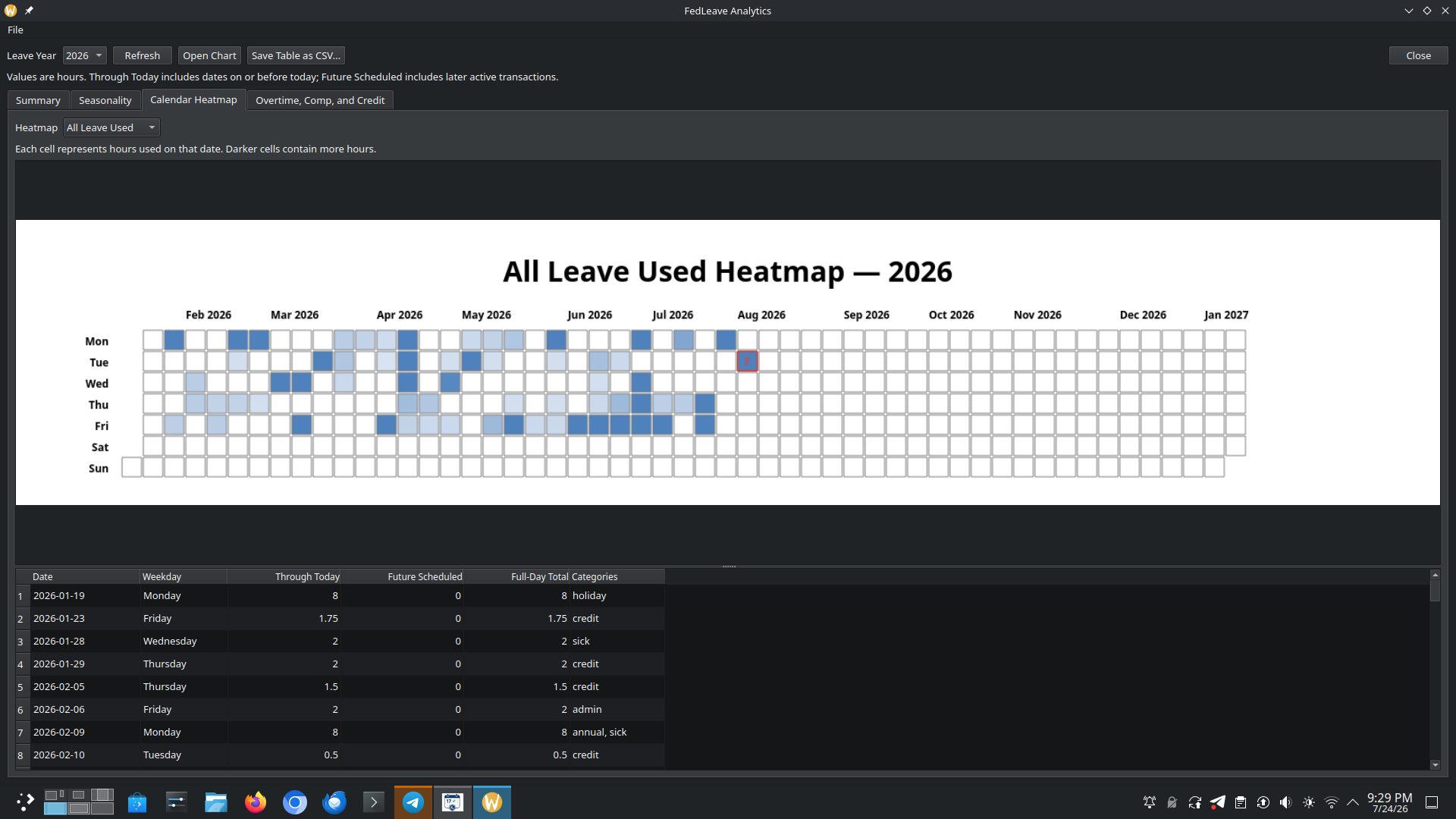
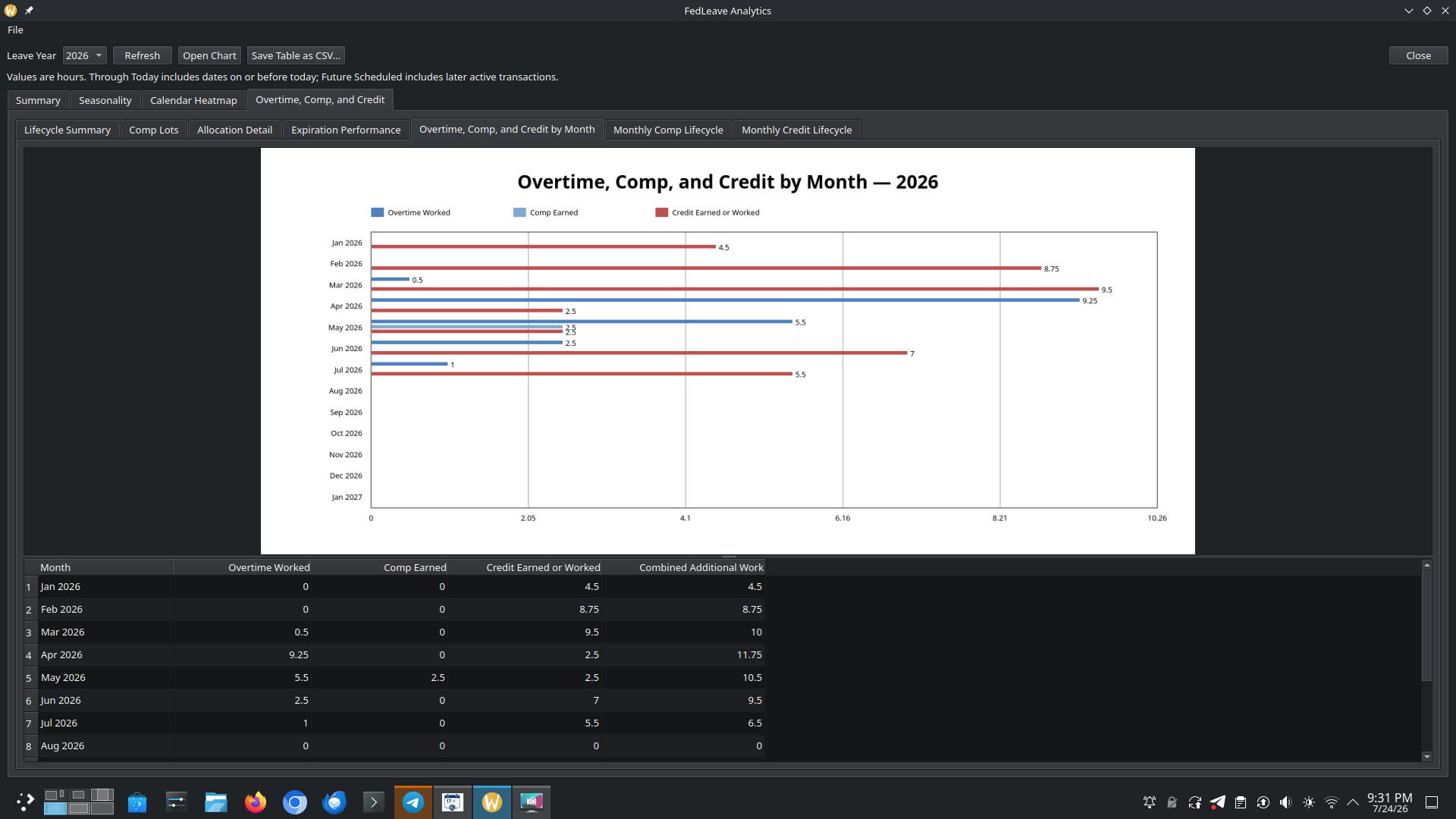
Running the GUI application should be as simple as selecting FedLeave Calendar from your Start Menu or typing FedLeaveCalendar in your Linux Terminal.
I wanted to experiment in vibe coding. What could it do? Could I use it to actually write a full application?
I was using a set of OpenClaw AI agents to manage my leave slips, and email my Boss and Clerk. So why not let it manage my leave balances? Well, AI stinks at math, so I wanted to make sure that part was deterministic, so I set out to write a command line application to keep the actual ledger.
I wrote, with considerable assistance of AI, a detailed (probably a 20 page) software spec, and blew thru the free tokens that come with VSCode.
To my surprise it worked.
I had the AI write it in a Unix style with detailed command arguments with standard output (and later JSON output). The idea was that it could make a back-end to either a web interface or a proper GUI, just like I was using it for with my OpenClaw agents. The GUI is done in QT, to help make it Windows and Linux compatible.
To continue the thought experiment, I then set out to create a proper cross-platform GUI.
This project isn’t a full time job, it’s a thought experiment. It’s not something that I plan on sinking much more time into. It’s doing what I need it to do. Thus, I’m solely providing it in hopes it is useful as-is.
FedLeave: A Practical Leave and Time Tracker for Federal Employees
Keeping track of federal leave is not especially difficult until several years of records, projected accruals, use-or-lose calculations, credit hours, compensatory time, and payroll reconciliation all become part of the same problem.
FedLeave was developed to put that information in one place.
It is a personal, single-user leave and time-tracking application designed around the way federal employees earn and use leave. It combines a graphical desktop calendar with a command-line back-end, allowing it to work both as an everyday desktop application and as a data source for scripts, dashboards, reports, or other software.
A Calendar Built Around the Federal Pay Period
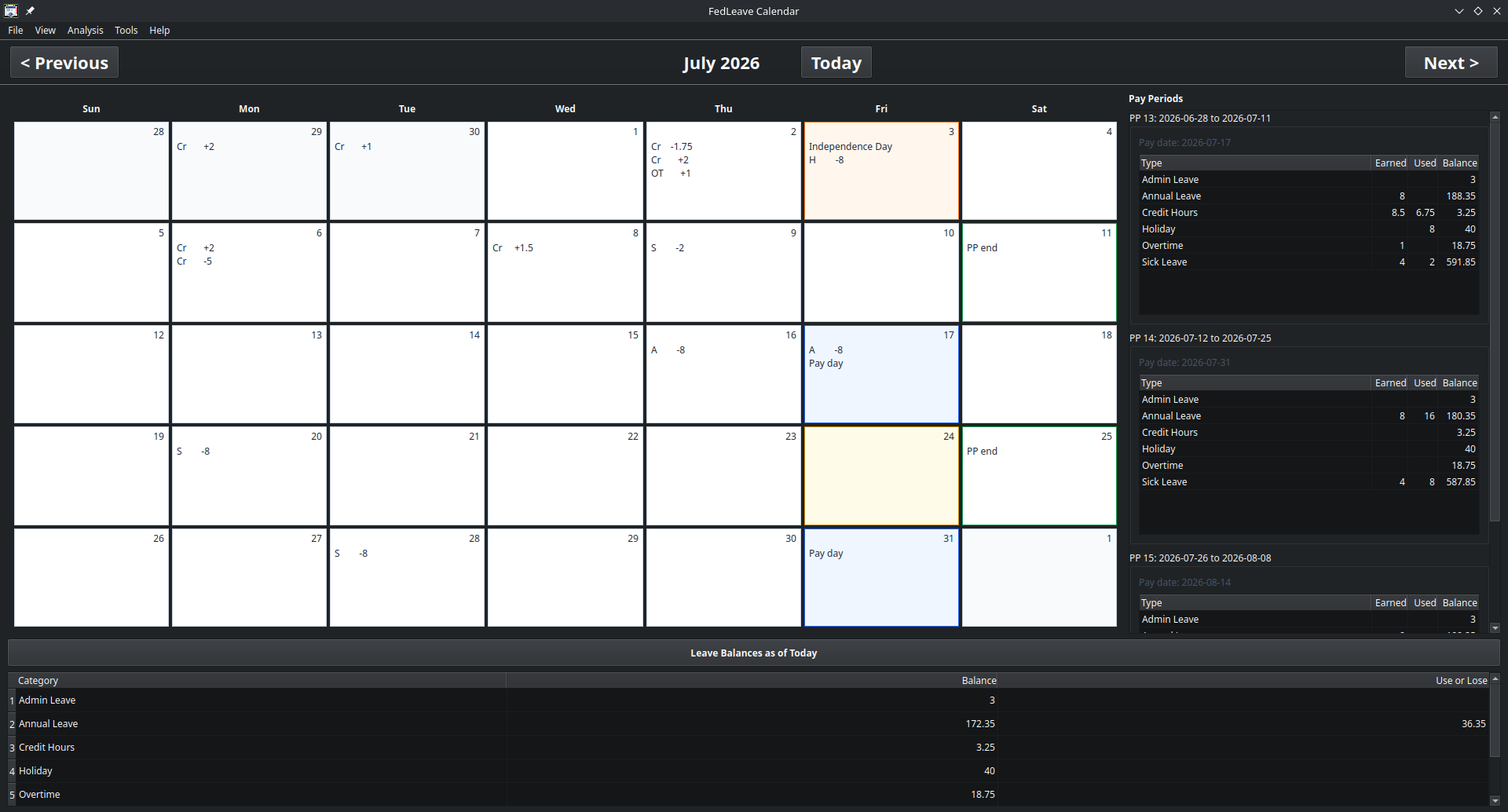
The main FedLeave interface presents leave activity as a monthly calendar rather than as a general-purpose spreadsheet.
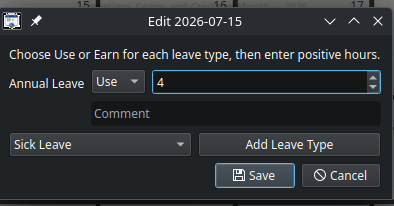
Each month shows recorded leave alongside federal holidays, paydays, pay-period endings, and the current date. Leave can be entered or corrected directly from the calendar, while supporting tables summarize the pay periods that overlap the displayed month.
This provides both views that are normally needed: a day-by-day record of what happened and a pay-period summary of what will affect leave balances or payroll.
The calendar also displays current balances as of today. Empty values are suppressed so the display remains focused on the categories that are actually being used.
Leave Accruals and Projections
FedLeave creates automatic annual- and sick-leave accrual transactions for every pay period in the leave year. Starting balances and the annual-leave accrual rate are established when the year is initialized.
The application can then calculate a balance for today, for an earlier date, or for a future date. Future calculations include scheduled accruals, making it possible to estimate how much leave will be available later in the year.
Accrual rates can also be changed from a specified effective date. This supports employees who move from one annual-leave earning tier to another during the year without requiring the remaining pay periods to be edited manually.
Year-end projections include annual-leave carryover and use-or-lose calculations. Instead of estimating from a current pay statement, the user can see the projected year-end balance based on recorded activity, future accruals, and the configured carryover limit.
More Than Annual and Sick Leave
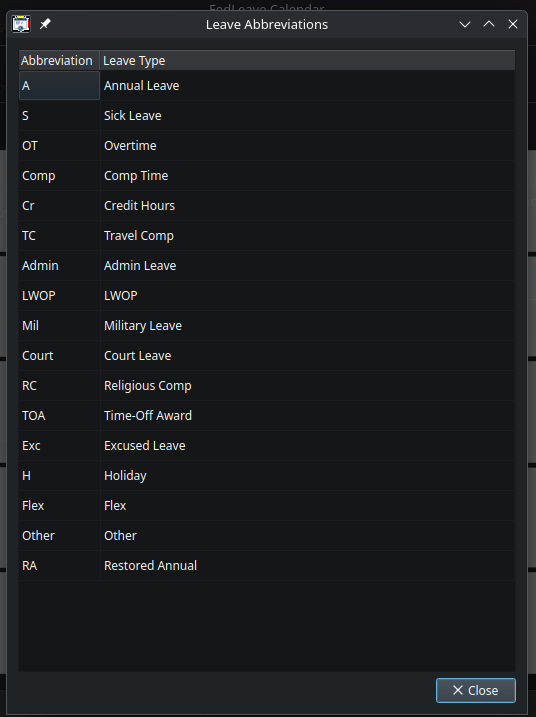
FedLeave supports the common categories needed for a broader record of federal time and attendance, including:
Annual leave, sick leave, credit hours, compensatory time, travel compensatory time, restored annual leave, religious compensatory time, time-off awards, overtime, military leave, court leave, administrative leave, leave without pay, excused absence, holidays, flex time, and other user-defined activity.
Overtime is treated as worked time rather than as a leave balance. Pay-period reports can therefore show the overtime expected to appear on the corresponding paycheck.
The application can also track individual lots of leave that expire. Comp time, travel comp time, and restored annual leave are supported by default, while time-off-award expiration can be enabled when applicable. The system tracks when each lot was earned, when it expires, and which earned lot is consumed first. Eligible expiration dates can be extended with a recorded reason.
Pay-Period and Monthly Reporting
FedLeave can report activity for a single pay period, every pay period in a leave year, or a complete calendar month.
Pay-period reports show leave earned, leave used, net changes, overtime worked, and ending balances. An optional daily view provides a row for every date in the pay period, including dates with no activity.
The graphical month report uses the same general layout as the desktop calendar. It includes the calendar, pay-period summaries, current balances, use-or-lose information, and a leave-category abbreviation table in a landscape format suitable for viewing, printing, or saving.
Reports intentionally omit internal transaction identifiers, data-file locations, and other implementation details that are not useful in a printed leave summary.
Charts for Current and Previous Years
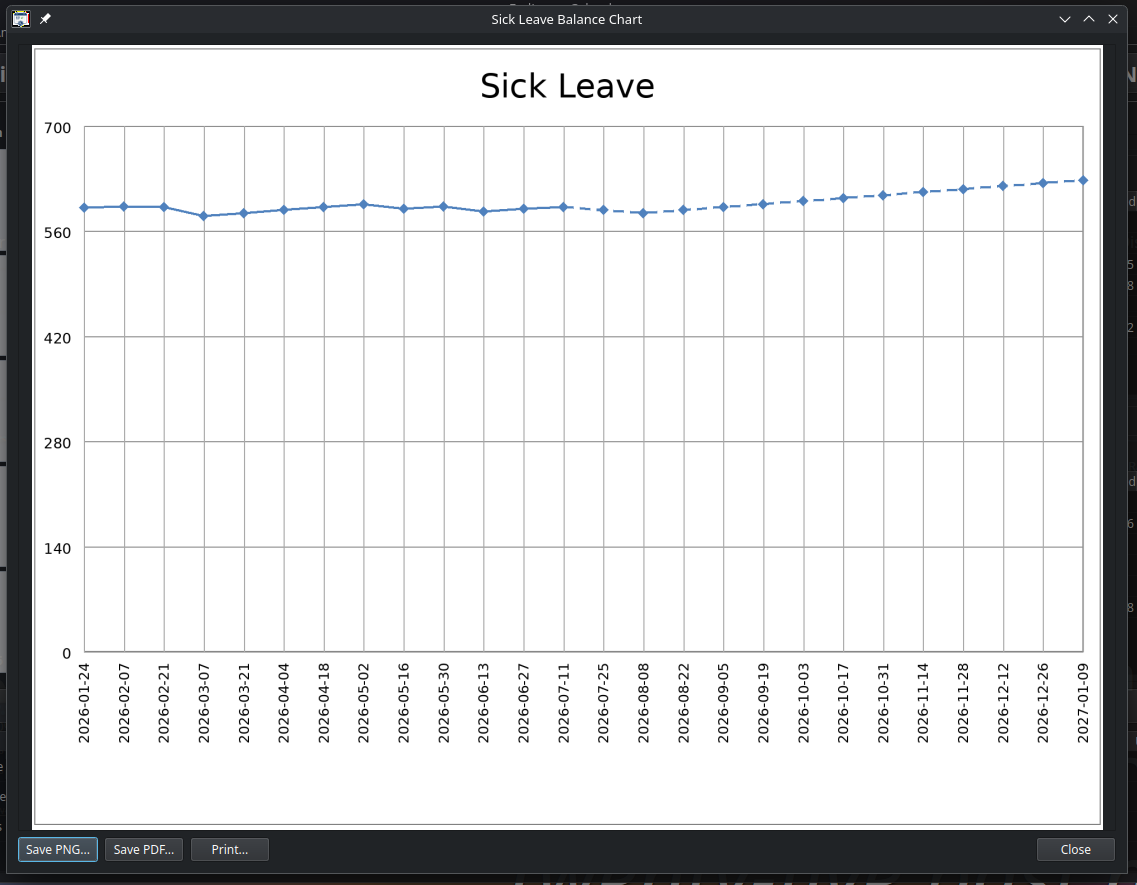
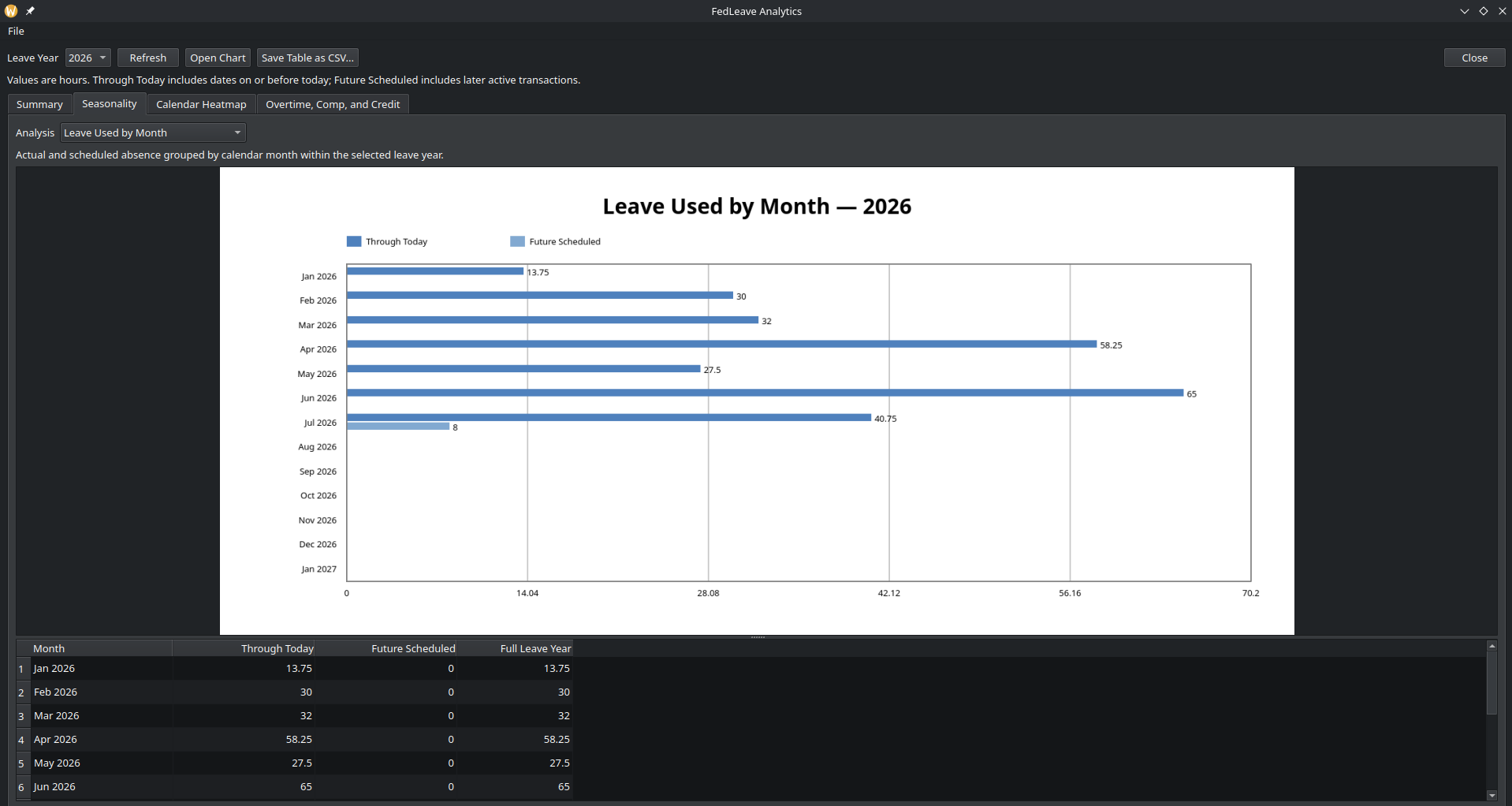
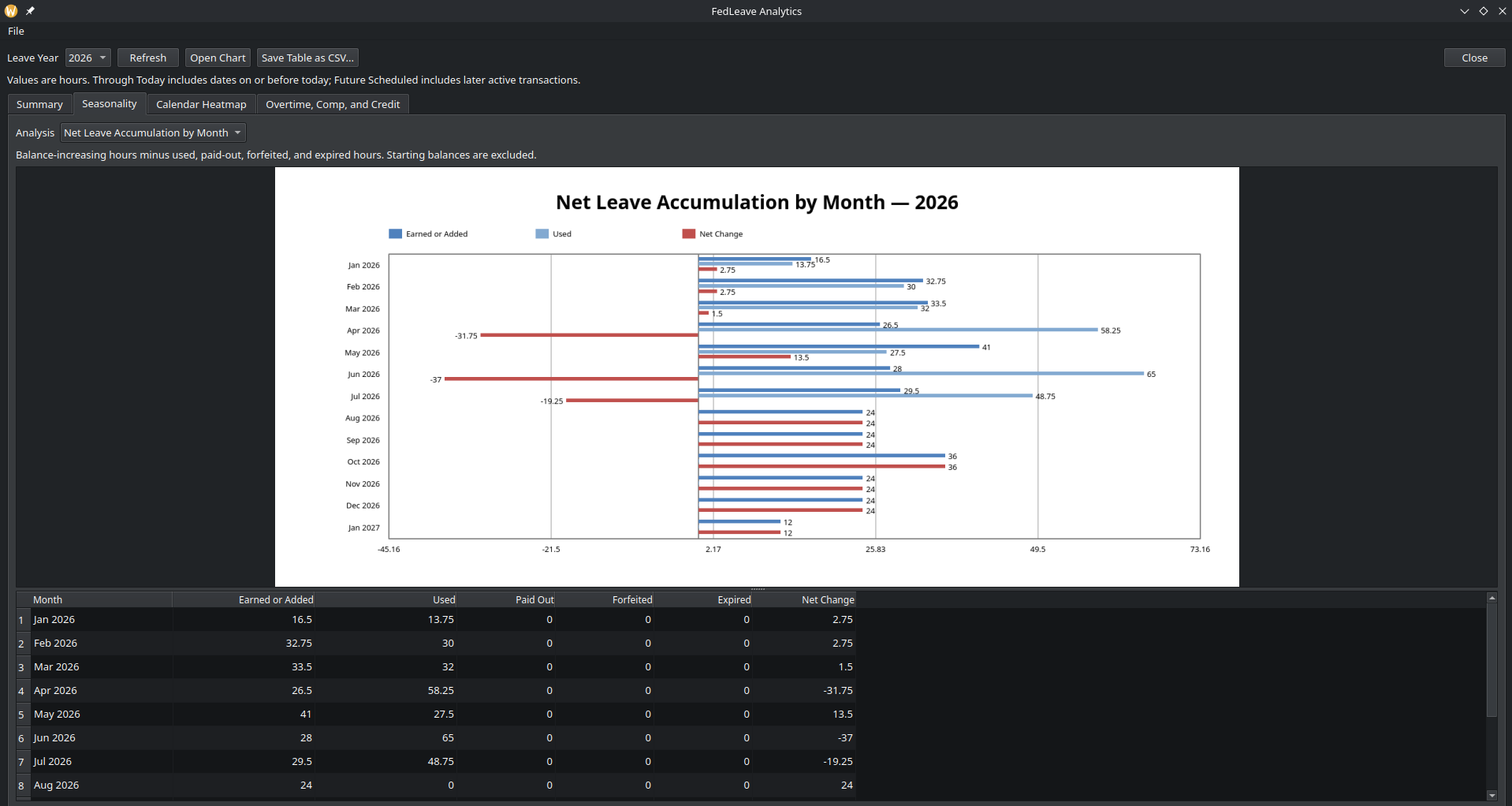
FedLeave includes companion chart applications for viewing how balances change through the leave year.
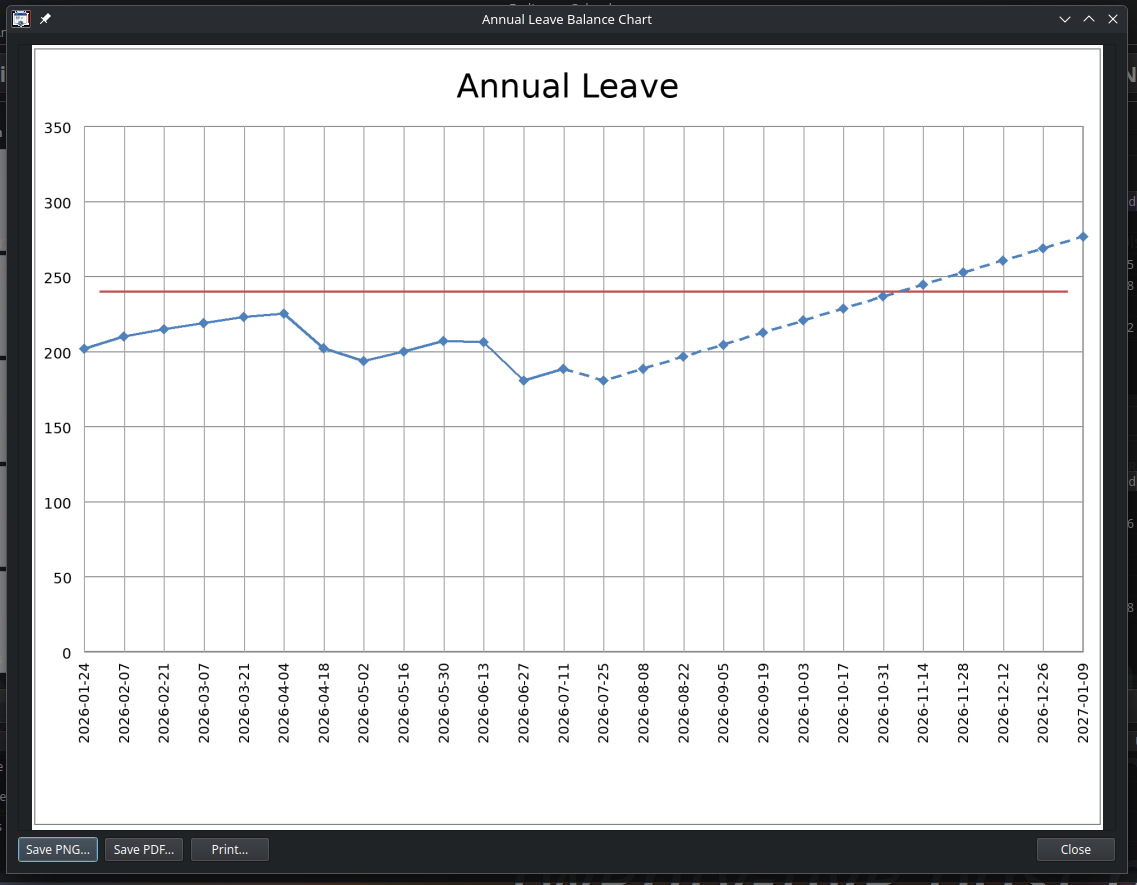
Separate annual charts are available for annual leave, sick leave, credit hours, compensatory time, travel compensatory time, and time-off awards. The charts distinguish recorded activity through today from future projected activity.
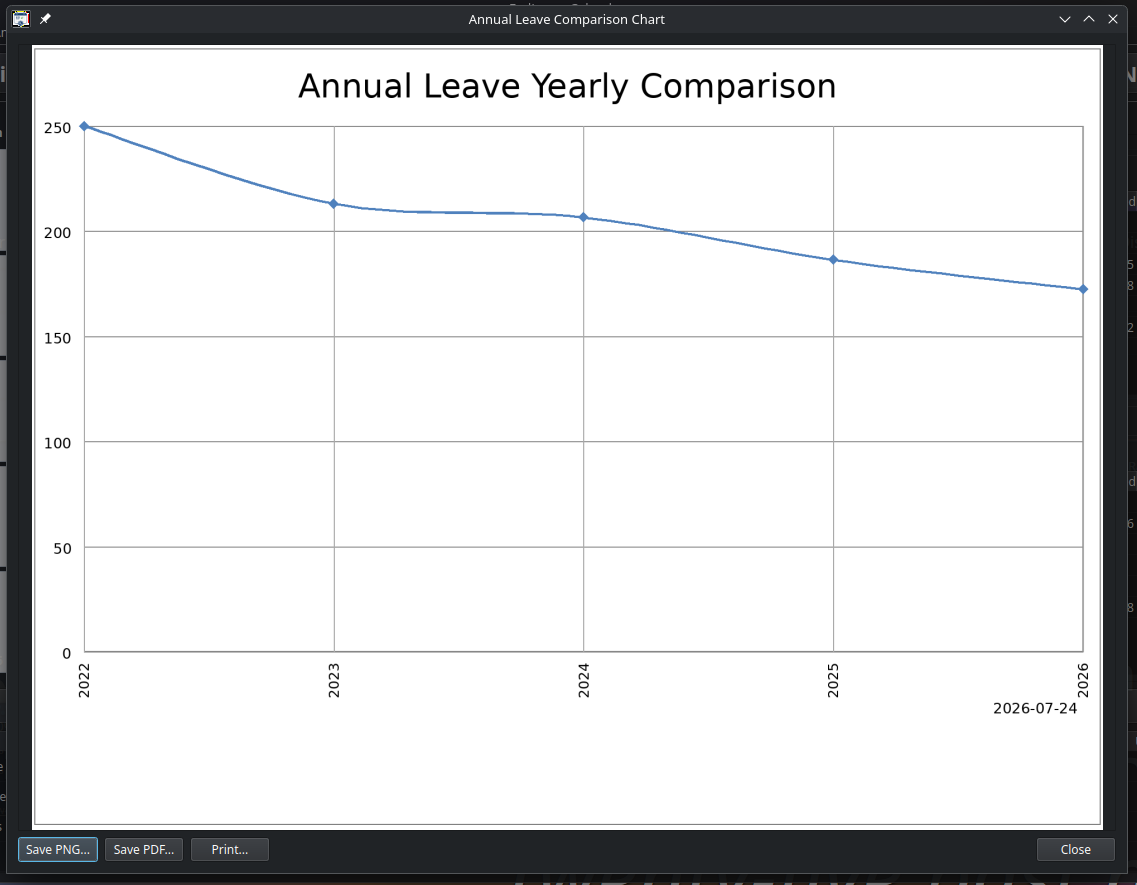
Year-over-year comparison charts provide a longer view. They can compare annual leave, sick leave, credit hours, comp time, travel comp time, time-off awards, and overtime across every leave year for which data is available.
Charts can be opened from the desktop application and saved as PNG or PDF files. They can also be printed directly.
Reconciliation and Corrections
Leave records do not always remain exactly as originally planned. A requested amount may change, a clocking report may contain the authoritative value, or a starting balance may need to be corrected.
FedLeave includes separate workflows for these situations.
A planned transaction can be replaced authoritatively. Payroll or clocking-report information can be reconciled against an existing entry. Individual transactions can be corrected, and a correction can be previewed before it is applied.
A balance can also be forced to an exact value as of a specified date by creating an adjustment. This preserves the calculated ledger while providing a controlled method of bringing the application into agreement with an official balance.
For users at Fleet Readiness Center East, FedLeave can import the WMS HTTP Leave Report. Supported WMS leave codes are mapped to FedLeave categories, and the application asks before replacing matching transactions. Unsupported codes are reported rather than silently assigned to the wrong category.
Local and Portable Data
FedLeave is a local, single-user application. Leave records are stored in JSON files on the user’s computer rather than in a hosted account or shared online service.
The complete data set—including configuration, leave-year records, and cached holiday information—can be exported as a portable archive. That archive can later be imported on the same computer or restored to a different installation.
Existing data is preserved by default during imports. When files are intentionally overwritten, FedLeave creates backups first.
The application also includes validation and normalization tools for checking the stored data. Older leave-year formats are migrated automatically, and compatibility logic can restore missing automatic accrual entries in data created by earlier versions.
A Back-end That Can Be Reused
The desktop calendar does not read or modify the leave files directly. All calculations and edits pass through the FedLeave command-line back-end.
That separation provides a consistent source of truth. The same balance calculation is used whether the request comes from the graphical calendar, a terminal command, a charting utility, or an external application.
Most commands can return either readable text or structured JSON. This makes FedLeave suitable as a back-end for personal dashboards, automated reports, AI agents, and other tools without requiring those tools to understand or manipulate the underlying data files.
Installation and Platform Support
FedLeave includes installation scripts for Windows and Debian- or Ubuntu-based Linux systems.
The scripts handle the main installation lifecycle, including building the application, installing it, repairing an installation, activating a new version, rolling back when necessary, and uninstalling it. An unattended mode is available for automated builds and continuous-integration workflows.
Packaged versions install the command-line back-end, the desktop calendar, the charting tools, and the graphical month-report generator as related applications.
Project Scope
FedLeave is an independent personal software project. It is not an official government timekeeping system, payroll system, or authoritative source of leave balances.
It is intended to supplement official records by giving an employee a clearer personal view of leave activity, projected balances, pay-period totals, and long-term trends. Official payroll and timekeeping records should remain the final authority.
Within that scope, FedLeave provides a practical answer to a recurring problem: understanding not only how much leave is available today, but how that balance was reached, what is expected in the next pay period, and where it is likely to stand at the end of the year.
Documentation for the Command Line/Terminal commands can be found in the README.md file, or on the GitHub Page.